
Use Little Binder on a computer, a phone, or the app
One family, one account. Sign in anywhere with the same email and password, and your creations are waiting.
On a computer
- Go to app.littlebinder.com in any web browser.
- Choose Sign in. Enter your email and password.
- Use the buttons along the bottom: Gallery, Create, and Family.
- To add a creation, choose Capture a creation and choose who made it. Then pick a picture saved on your computer.
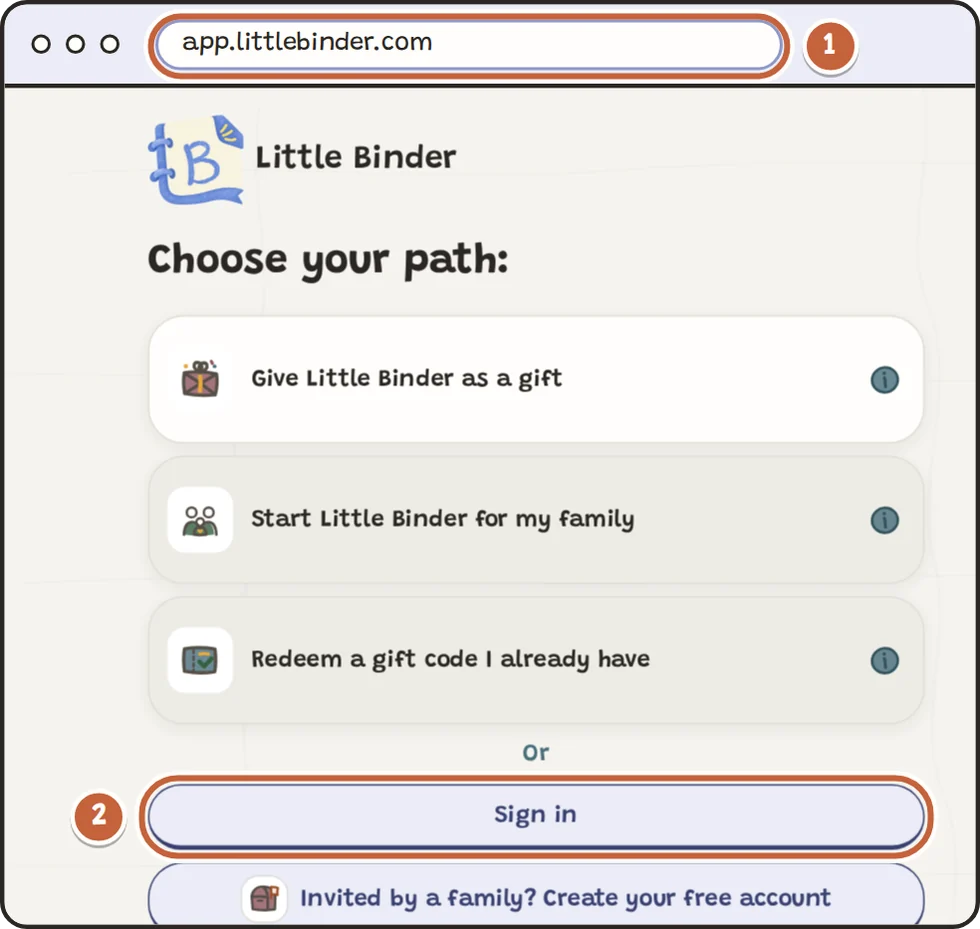
- The address: app.littlebinder.com
- Sign in
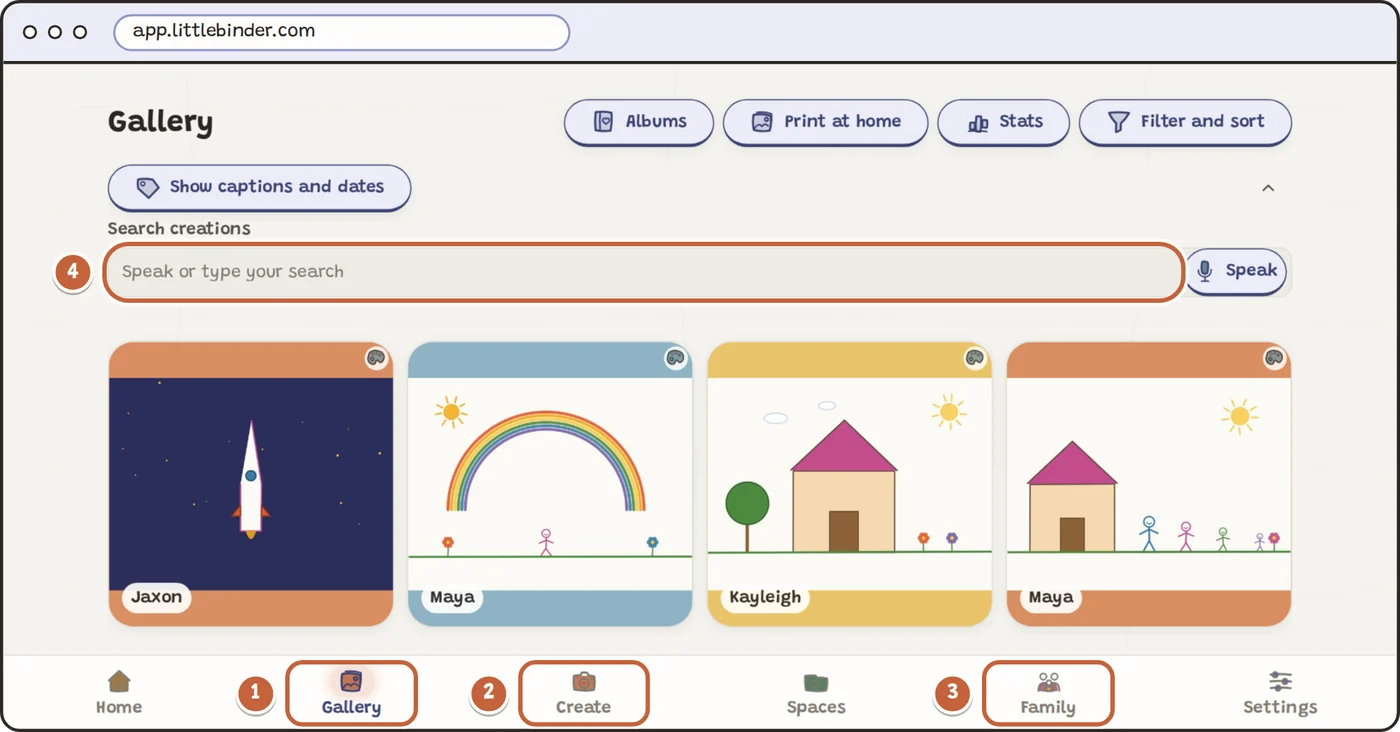
- Gallery: every creation
- Create: add a creation
- Family: invite people and share
- Search: find any creation
On a phone or tablet, in the browser
- Open Safari, Chrome, or your usual browser and go to app.littlebinder.com.
- Tap Sign in. Enter your email and password.
- Tap Capture a creation and choose who made it. Your phone then offers its camera or a picture you already have.
- Want it one tap away? Add it to your Home Screen. In Safari, tap Share, then Add to Home Screen. In Chrome, tap the menu, then Add to Home screen.
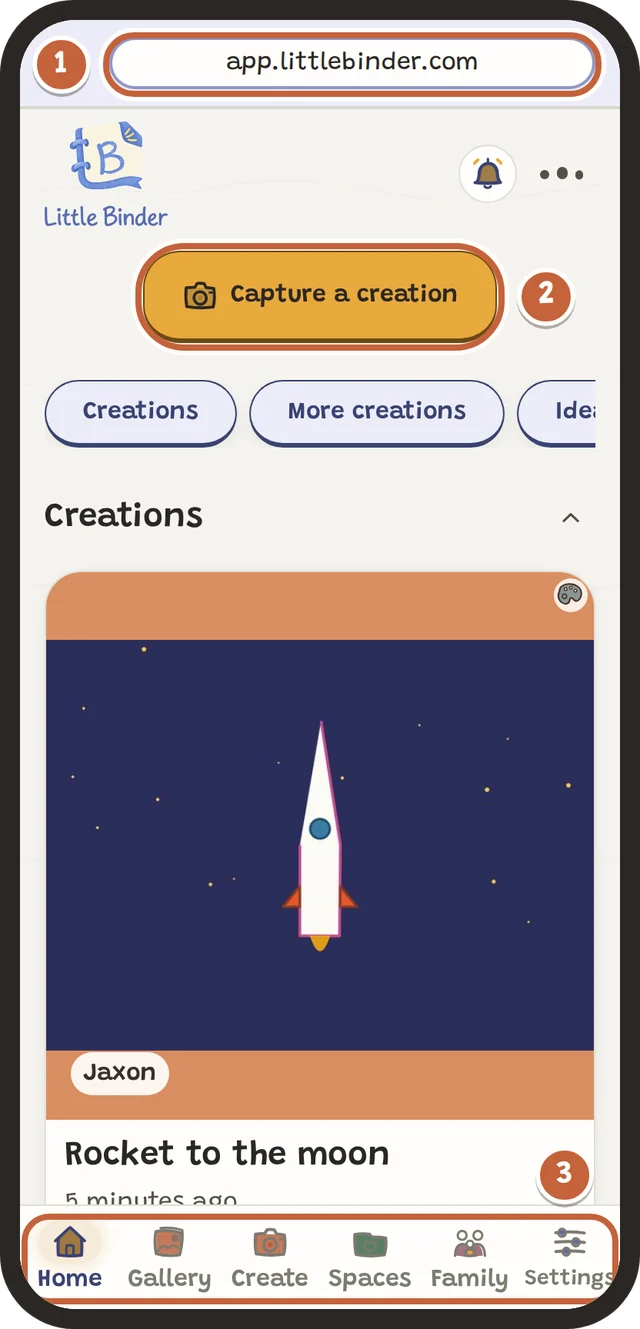
- The address: app.littlebinder.com
- Capture a creation
- Gallery, Create, Family and Settings along the bottom
In the iPhone and Android apps
- The apps arrive in the App Store and Google Play at launch, in the United States and Canada. Until then, use the browser on your phone.
- Install Little Binder, open it, and tap Sign in. Use the same email and password.
- Tap Capture a creation and the camera opens right inside the app.
- The apps also have Offline mode, so a child can keep creating on a device with no connection.
Plans are managed at littlebinder.com. The apps never charge for anything.
The same family everywhere
Everything you save on one device shows up on the others once it has sent. If a device is offline, new creations stay safe on it and send when the connection is back. Open Signed-in devices from Settings or your shared Account page to see active sign-ins, this device, and sign-in and last-active times. Devices have generic labels because Little Binder does not track their model or location.
Children do not need their own accounts. A grown-up signs in, and children create on that device.